Everyday remote control
Use the computer normally from another room, office, or location through your web browser.


Remote KVM
Access and control a physical computer from your browser, whether you’re using the desktop, rebooting the system, or troubleshooting before the operating system loads.
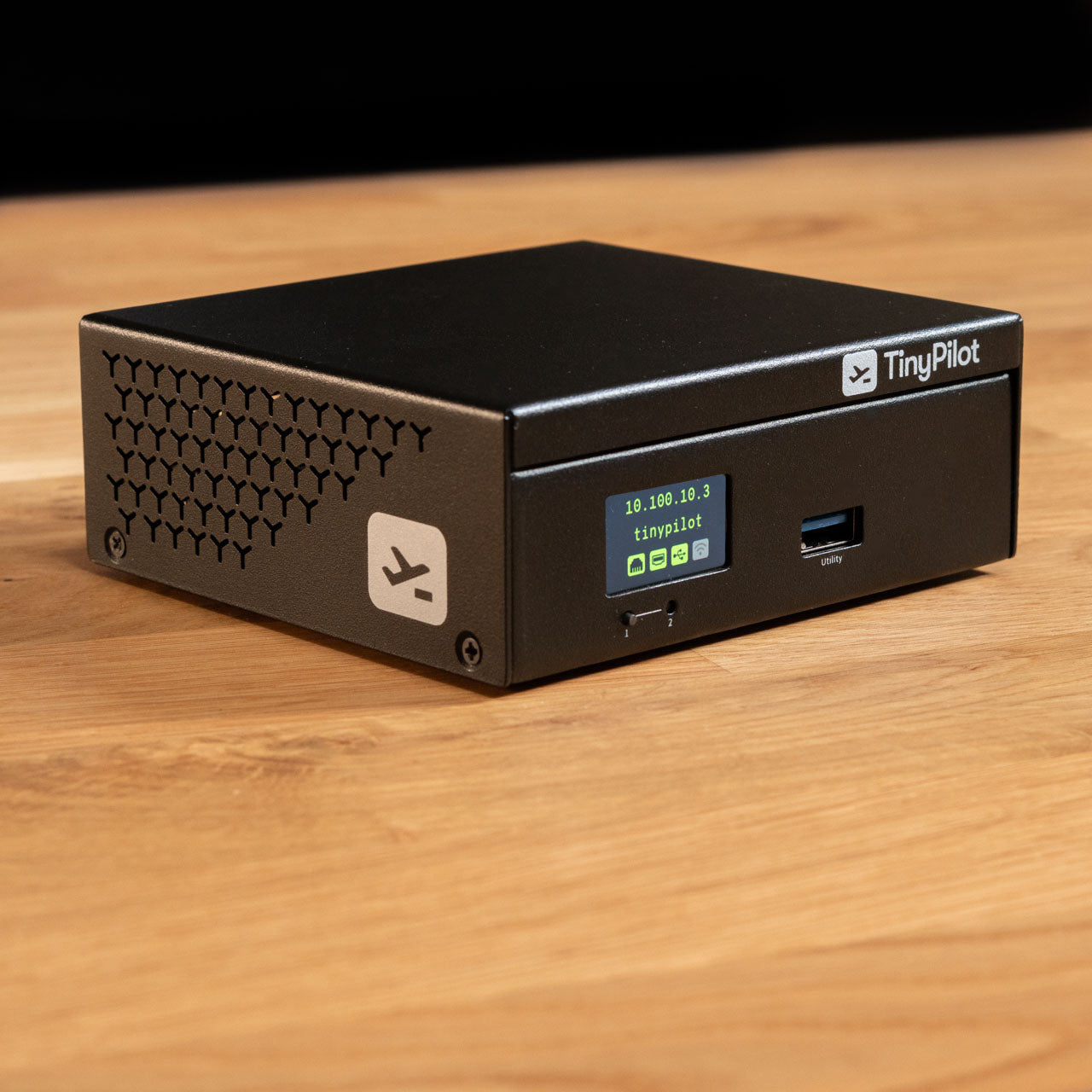
TinyPilot Voyager 3 connects directly to your computer’s video and USB ports, giving you remote keyboard, video, and mouse control without installing software on the target computer.
Use a remote KVM to control a physical computer from another location, from normal desktop use through startup and recovery.
Use the computer normally from another room, office, or location through your web browser.
Reach BIOS/UEFI, boot menus, BitLocker prompts, and recovery screens before the operating system loads.
Stay connected when RDP, VNC, RMM agents, or other software-based remote tools stop working.
Voyager 3 connects to the target computer through HDMI and USB and to your network through Ethernet. You connect to TinyPilot through a web browser, while TinyPilot captures the target’s video output and emulates a keyboard and mouse.

HDMI for video and USB for keyboard, mouse, and virtual media.
Use your LAN, VPN, or Zero Trust network.
Control the machine without installing software on the target or your workstation.
Yes. A remote KVM lets you view and control the computer from your browser just as if you were sitting in front of it. TinyPilot Voyager 3 does this without installing software on the computer you’re controlling.
Remote desktop software runs inside the operating system. A hardware remote KVM connects directly to the computer’s video and USB ports, so it works for normal desktop access and remains available during boot, BIOS/UEFI, recovery screens, or an operating system failure.
Yes. A remote KVM can be accessed from another location over a secure network connection. TinyPilot Voyager 3 can be used over a VPN or Zero Trust network such as Tailscale without exposing the device directly to the public internet.
For TinyPilot Voyager 3, connect the computer’s video output to HDMI and connect USB for keyboard and mouse control. Then connect Voyager 3 to power and Ethernet and access the computer through your web browser.
When comparing remote KVMs, focus on trust, reliability, and how you connect.
Giving a remote KVM access to your computer is like giving someone physical access to it. Choose hardware and software from a vendor you trust, with clear security practices and transparent network behavior. See TinyPilot’s Trust & Transparency page.
A remote KVM should provide a clear, stable picture and responsive keyboard and mouse control whenever you need it. TinyPilot prioritizes reliable browser-based video for everyday access, troubleshooting, and recovery.
Some remote KVMs require proprietary client software. Browser-based devices like TinyPilot let you control the remote computer directly from a web browser without installing additional client software.